Your Switch works fine in handheld mode, but drop it in the dock and the TV stays black. Or it charges from one charger and not another. Or it charged yesterday and today the battery icon just sits there. These are some of the most common Switch problems we see on the bench, and the cause is usually not the dock or the cable. It’s one of a few small chips on the Switch’s main board that handle charging and video over the USB-C port. This post explains what those chips do, what usually damages them, what you can safely check at home, and when it’s time to bring it in.
What the USB-C port on a Switch actually does
The bottom USB-C port on a Switch does a lot more than a phone’s charging port. Through that one connector the console negotiates how much power it should take from the charger, charges its battery, and, when it’s docked, sends its video signal out to the dock so the dock can turn it into HDMI for your TV. Three parts of the board do most of that work:
- The USB-C port itself. The physical connector. Bent or broken pins, debris packed inside, or a port that has torn loose from the board will cause charging and docking problems on their own.
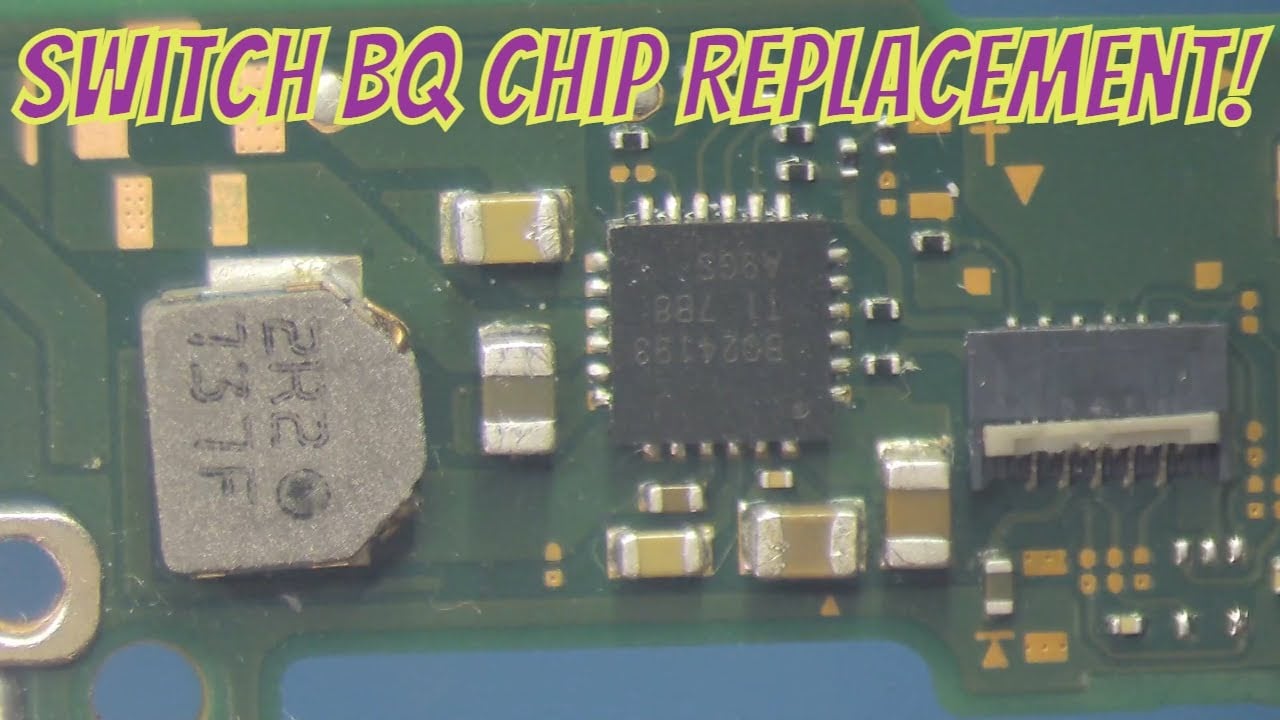
- The charging chip (BQ24193). This chip manages how power flows into the battery and the rest of the console. When it fails, a Switch may stop charging, charge only from certain chargers, or not power on at all.
- The power delivery chip (M92T36). This one talks to the charger or dock and agrees on voltage and current. When it’s damaged, the Switch often charges slowly or not at all and usually won’t work in the dock.
- The video switch chip (PI3USB30532). When the console is docked, this chip routes the display signal out through the USB-C port. If it fails, the Switch can charge normally but never shows a picture on the TV.
Because these jobs are so closely linked, one bad event like a faulty dock, a cheap charger or a bent port can take out more than one of them at once. That’s why a “won’t dock” Switch and a “won’t charge” Switch often turn out to be the same family of repair.
Symptoms and what they usually point to
Every console is different and we confirm the cause on the bench, but these patterns come up again and again:
- Charges in handheld but no picture on the TV in the dock. Often the video switch chip, sometimes the port. If the dock’s green light comes on and the console charges, but the TV says no signal, this is a likely suspect.
- Charges with the cable plugged in one way, but not when you flip it over. USB-C is supposed to work in either direction. When it only works one way, the port pins on one side or the chips behind them are usually damaged.
- Won’t charge at all, or the battery drains even when plugged in. Often the charging chip, the power delivery chip, or both.
- Dead console that won’t turn on, even after charging overnight. Can be a failed charging chip, a short on the board, or simply a battery so drained it needs help to wake up. This one needs diagnosis before anyone can say which.
- Works with the official Nintendo charger but not a third-party one, or the reverse. Could be the charger, or a weakened power delivery chip that can’t negotiate with some chargers anymore.
- Gets hot near the bottom edge while charging. Stop charging it and bring it in. Heat at the port usually means something is shorted.
Why it happens: docks, chargers and drops
The single most common story we hear is “it worked until I used a different dock.” Third-party docks and some compact travel docks have a long reputation in the repair world for damaging Switch boards, especially after system updates or when they don’t follow the USB-C power rules closely. Not every third-party dock causes problems, but if your Switch died right after you started using one, that’s a strong clue.
Other common causes include low-quality chargers or cables, plugging in a cable at an angle or with force, drops while the cable is connected (which can crack the port or pull it off its pads), and liquid or debris getting into the port. Dust, lint and pocket grit packed into the port can also keep the cable from seating fully, which leads to flaky charging and docking.
What you can check at home first
Before you assume a board repair, rule out the easy stuff. These checks are safe and take a few minutes:
- Use the official Nintendo AC adapter. Plug it straight into the console in handheld mode. If the Switch charges this way but not in your dock, the dock or its power supply may be the problem rather than the console.
- Try a known-good official dock. If you have access to another original Nintendo dock, test with that. Plug the dock’s power in first, then the HDMI, then set the console in.
- Look inside the port with a flashlight. You’re looking for lint, debris, or a center tongue that looks bent, cracked or crooked. Don’t poke at it with metal. A soft, dry wooden toothpick can gently lift out lint.
- Do a full restart. Hold the power button for about 12 seconds to force it fully off, then turn it back on and try again.
- Leave it on the official charger for a while. A deeply drained battery can take some time before the console shows any sign of life.
- Stop using the suspect dock or charger. If a problem started right after using a new accessory, set it aside until the console is checked. Plugging a damaged Switch back into the same accessory can make things worse.
If none of that helps, or if you can see the port is physically damaged, it’s a board-level repair. Please don’t keep forcing cables in and out. A loose port that gets worked back and forth can rip pads off the board, which turns a port swap into a much harder job.
How we repair it
Fixing a Switch that won’t dock or charge is microsoldering work. We open the console, inspect the port under magnification, and test the power and video circuits to find exactly which part failed. Depending on what we find, the repair might be a new USB-C port, a replacement charging chip or power delivery chip, a new video switch chip, or a combination. Replacing these chips means removing a tiny part from the board with hot air and soldering a new one on precisely, then testing charging in both cable directions, handheld play and TV output in the dock.
Here’s David replacing the BQ24193 charging chip on a Switch that wouldn’t dock or charge one way:
And here’s a Switch that charged but wouldn’t show on the TV, fixed by replacing the video switch chip:
More of our bench videos are on the repair guides page.
What about my games and saves?
Charging and docking repairs normally don’t touch the console’s storage, so your games and saves usually stay right where they are. Still, it’s smart to turn on Nintendo Switch Online cloud saves if you have them, and to keep your microSD card with you. If the board turns out to need bigger work, we’ll tell you before going further.
Does this apply to the Switch OLED and Switch Lite?
Yes. The original Switch and the Switch OLED both dock, so both can have the no-TV-output problem, and both can have the same charging problems. The Switch Lite doesn’t support TV output at all, so “won’t dock” doesn’t apply, but Lites do come in with charging and port problems that are repaired the same way. Not sure which model you have? Bring it in or mention it when you call, and we’ll sort it out.
Getting it fixed in Lincoln, Omaha or by mail
We repair Switch charging and docking problems at all three of our service options. Every repair is quoted after diagnosis, nothing is repaired until you approve, and every repair comes with a 30-day limited warranty on the work we did. Because the fix depends on which parts failed, we don’t post flat prices; we tell you the real price once we’ve looked inside.
- Lincoln: Walk in to our counter inside Gamers at 2711 King Ln, Suite 202. There’s a $25 drop-off fee that’s credited toward your repair, and Lincoln repairs take 3 to 5 days. Details are on our Switch repair in Lincoln page and the main Lincoln console repair page.
- Omaha: Same-day repair in Omaha with a free diagnosis, and a $40 fee only if the item can’t be repaired.
- Mail-in: Anywhere else, use our mail-in repair service, with a free diagnosis and a 3 to 5 day turnaround after your Switch arrives.
For everything else we fix on the Switch, including screens, card readers and Joy-Con drift, see our Nintendo Switch repair page. If your Joy-Cons are the problem rather than the console, our stick drift guide and controller repair page cover that.
Quick answers
Is it my dock or my Switch? Test with the official Nintendo charger in handheld mode and, if you can, an official dock. If the console charges and plays normally but no dock will put it on the TV, the console is the likely problem.
Can a third-party dock really break a Switch? It can. Not every one does, but it’s one of the most common causes we hear about.
Will I lose my saves? Usually not. These repairs don’t normally involve storage.
Is there a warranty? Yes, a 30-day limited warranty on the work we performed.
Questions before you bring it in? Call or text (402) 703-4403 or email info@gogamers.com.